Help
A short guide to every screen in ACHI rework soft — from connecting to exporting data.
1Connecting to the station
In Settings → Connect, pick a serial port, baud rate and device address (7 data bits, even parity, 1 stop bit are fixed by the protocol and can't be changed). With no hardware at hand, pick SIMULATOR from the port list to try the app with nothing attached. Next to it, the Manual card holds one constant temperature without building a full program.
2Process – Start/Stop/Hold
The main working screen. START/STOP/HOLD send the exact same commands the station's own front panel would. The chart shows the planned profile while idle, then live PV/SP data once running. Export PNG/CSV saves the current chart/data any time on demand.
3Monitor: watching vs. recording to file
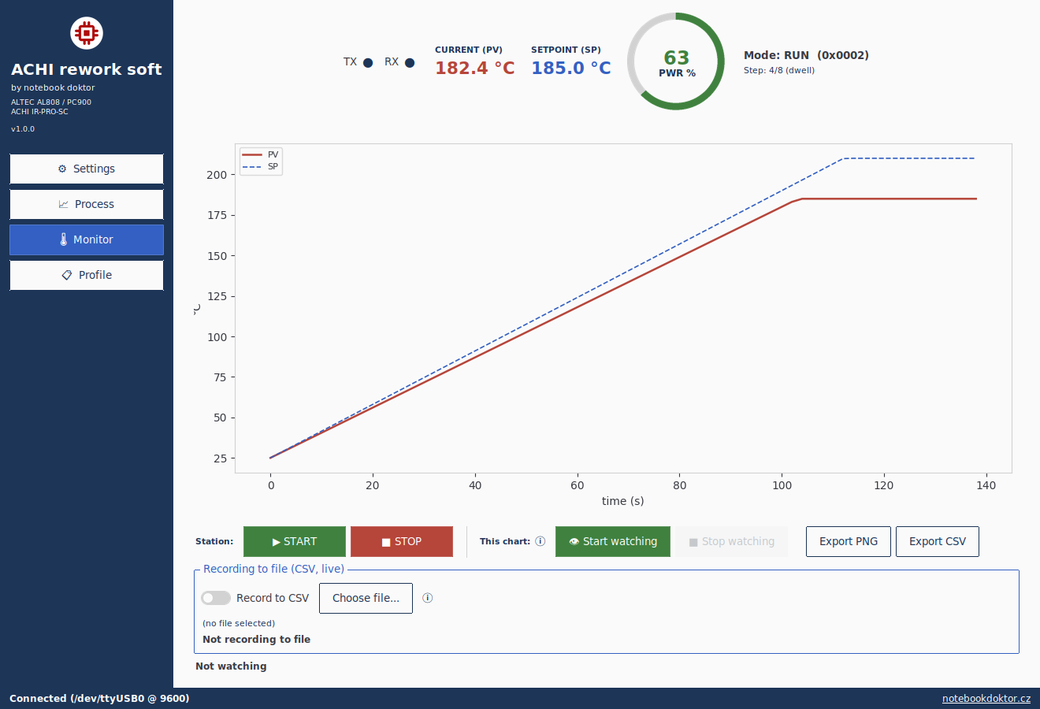
These are two independent concepts. "This chart" only buffers the graph on the Monitor tab and is forgotten the moment you leave the tab — a purely local preview that never writes to the controller. "Recording to file" writes every sample (time, PV, SP, OP) to disk live, regardless of which tab you're on — and is shared between the Process and Monitor tabs. Monitor also runs fully independent of any profile, so it can watch a station that's already running from its own panel.
4Automatic recording
Settings → Recording has a switch, "Automatically record to CSV when a program starts". Turning it on makes the app start writing CSV on its own as soon as the station starts running (by button, manually, or from its own panel), and stop on its own when the run ends. It never overrides a manual recording already in progress. Files are named recordings/<preset or PTNn or manual>_<YYYYMMDD_HHMMSS>.csv.
5Program editor & saved profiles
Profile → Editor: each of up to 8 steps has a ramp (°C/s), a target (°C) and a dwell (s); switching a step's "Active" off disables it and every step after it. Ramp may also be the word END. The pattern slot (PTN 0–9) picks which station slot the profile goes to; ⬇ Download / ⬆ Upload read or write the station's actual profile. Profile → Saved profiles is a plain list of every locally saved profile, with quick load or delete.
6Advanced parameters
Settings → Advanced gives direct access to the controller's PID, alarm and limit parameters — meant for service work and control tuning; day‑to‑day operation never needs this tab. Probe steps 1‑8 checks which program steps the station actually answers for.
Operating safety
The software sends commands exactly as the protocol dictates — it does not check whether a heat‑sensitive part sits on the board, whether the station is ventilated, or whether a profile matches the package. Safe operating practice remains the operator's responsibility, exactly as when operating the station directly.